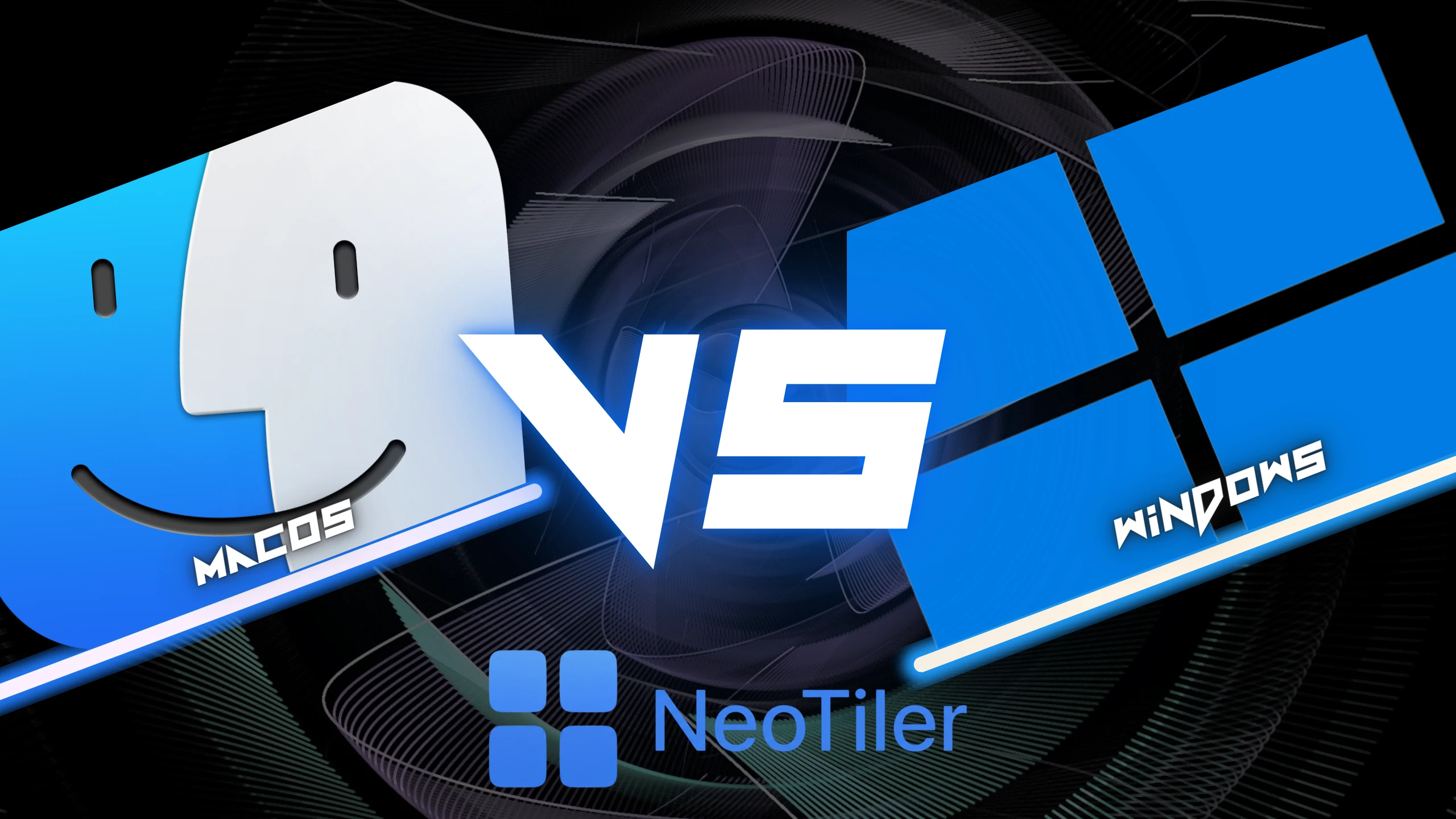
I used Windows for many years before switching to Mac. Honestly, even though the transition felt a little strange at first, I didn’t have too much trouble adapting. That was a long time ago though, I’ve been on macOS for about 3-4 years now and I genuinely love the stability and everything that comes with it. But recently, a problem came to mind that actually became the reason I built NeoTiler. So If you’re moving from Windows to Mac and missing snap features, you’re not alone.
There was no simple Win + ← arrow key shortcut on macOS. In that moment, my old Windows setup came back to me, even though I’ve become someone who really doesn’t like Windows, I remembered that it did have some conveniences.
On Windows, you drag a window to the edge and it snaps. Hit Win + ←, the window jumps to the left half. Simple and fast. Even though macOS has picked up some snap features in recent versions, it still felt pretty far behind to me. That’s why I started building NeoTiler. If you’re wondering why I didn’t just try what already existed, you can read this article.
What Windows Snap Does (That macOS Doesn’t)
Windows has had proper snap since Windows 7. By the time Windows 11 came around, it got even better, Snap Layouts let you pick from multiple grid options just by hovering over the maximize button.
What you get on Windows:
• Win + ← / Win + → for instant left or right half snapping • Win + ↑ / Win + ↓ to maximize or restore • Drag to corner for quarter-screen snapping • Snap Layouts for choosing complex arrangements
macOS Tahoe does offer window tiling, and that’s an improvement, but as someone coming from Windows, two things immediately frustrated me.
First: the shortcuts are tied to the Globe key (fn), which isn’t on most external keyboards. And you can’t reassign them. So the keyboard-driven workflow you built on Windows simply doesn’t carry over to Mac.
Second: there are no custom layouts. You get halves and quarters. That’s it. No 70/30 split, no three-column setup, nothing beyond the basics.
This is exactly where I decided to build NeoTiler, driven by the philosophy that is at the core of everything I do: if something can be changed, it should be changeable.
Windows-Style Snap on Mac: NeoTiler
Honestly, I didn’t do any research before I started building. I had no thoughts like “who will my competitors be”, because I wanted to bring my idea, my philosophy to life. I wanted to speak to people like me: people who value freedom and simplicity. Let’s look at what we offer.
How do I get Win+← shortcut on Mac?
This was my first need. Win + ← was burned into my fingers from Windows, and I wanted to assign key combinations that land in exactly those same positions for me personally. NeoTiler lets you assign any key combination to any layout. You can recreate your Windows shortcuts exactly, or build something entirely your own from scratch. No Globe key requirement, no system restrictions.
Does snap work with a mouse on Mac?
On Windows, snap works whether you’re using a touchpad or a mouse. I decided to use every means available to bring the full snap experience to users in every sense. Whether through shortcuts, trackpad, or mouse, or by taking the experience even further with custom gesture movements, I give you the freedom to do whatever you want with your system. And by the way, the gesture feature works not just with a trackpad, as you might expect, but with a mouse too.
Shake to Minimize
This one doesn’t come from Windows, but once you use it you can’t go back. When your screen fills up with windows, just shake the one you want to keep, everything else minimizes instantly. That cleanup move I always wished Windows had, we’re bringing it here.
Why doesn’t Cmd+Tab bring windows to the front on Mac?
One thing that bothered me right when I switched to Mac: Cmd + Tab shows you that you’ve switched to an app, but if that window is buried somewhere on screen it doesn’t come to the foreground. On Windows, Alt + Tab actually brought the window to you. With NeoTiler we solve this, you can navigate between apps with your assigned shortcut, and when you select one, the window appears on your screen in full, exactly as you’d want to use it.
On top of that, we’re aiming to bring you the Windows Taskbar Thumbnail Previews feature, something I think Windows genuinely got right, in the near future. I think I’ll be the most excited about that one, because even in development it’s already become a really useful feature.
How much does NeoTiler cost?
NeoTiler is $5.99, one-time payment. No subscription. You pay once and it’s yours.
There’s a 14-day free trial with no credit card required. If it doesn’t give you your Windows workflow back, you haven’t lost anything.
The Honest Take
macOS is a better environment for me than Windows was. But window management was a real gap, and I needed something that didn’t force me to relearn everything from scratch, something that genuinely respected the way I work. So I chose to build it myself.
NeoTiler is an app I built according to my own perspective. But if you think like me, if you’re coming from Windows and you want your snap features back, plus some great extras on top, you can try it free for 14 days right now.


 Veysel Okatan