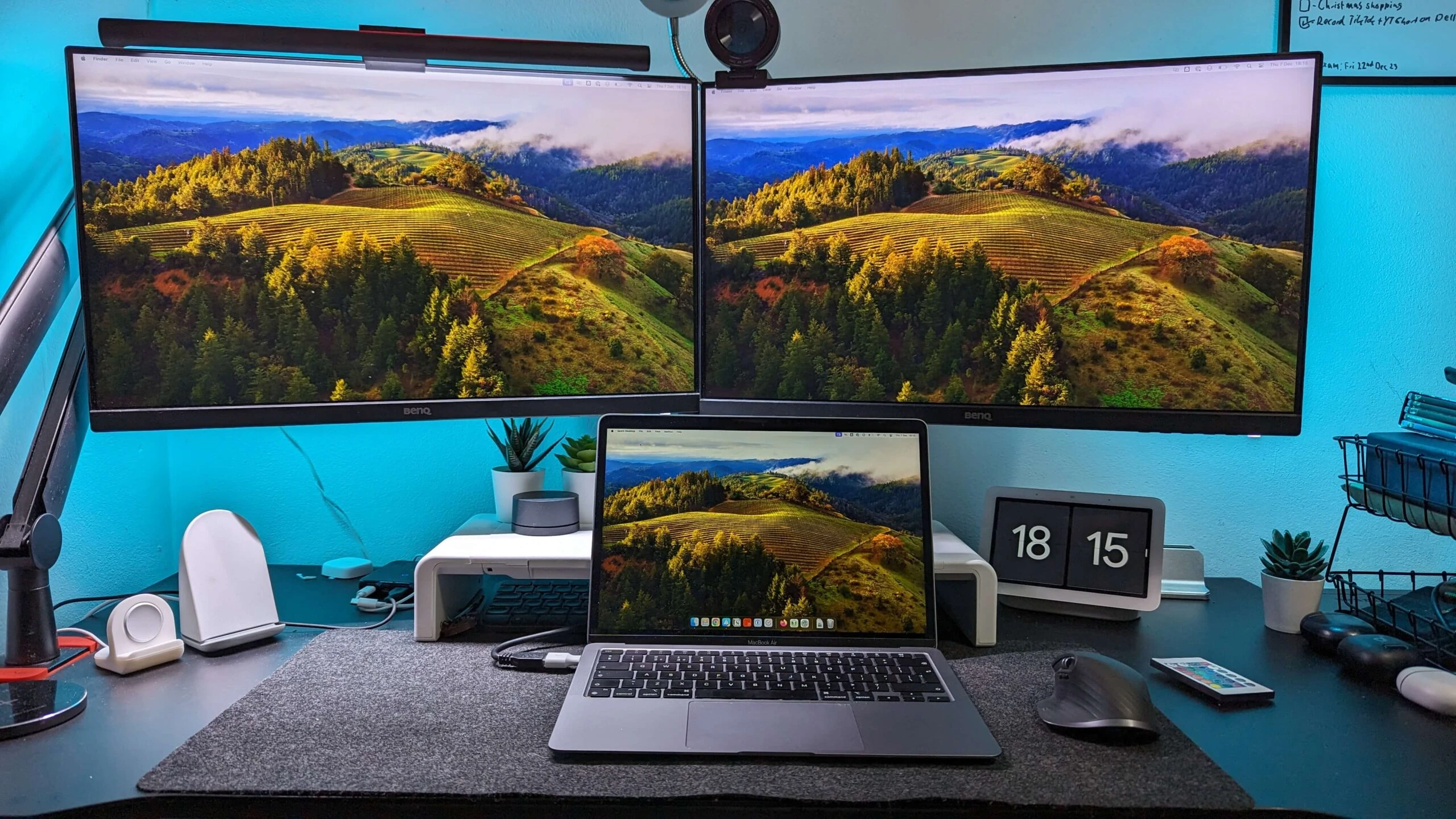
macOS is a great environment for working; I can easily say this as someone who used Windows for many years. However, in every great environment, certain deficiencies can be personally identified. One of the most frequently discussed topics on Reddit and developer forums recently is the macOS external monitor sleep issue. Even in macOS Golden Gate (2026), users are reporting that when their Mac wakes from sleep, all windows previously located on the external monitor are moved to the main MacBook screen.
If you are using a secondary display, you have likely experienced this. You arrange your windows, let the Mac go to sleep, and when you wake it up, your carefully placed applications have gathered on the primary screen. In this article, I want to explain why this happens, look at the common workarounds people are using, and discuss how to properly fix it using the right window management tools.
The Technical Cause: Signal Delay
To fix a problem, we first need to understand why it happens. This is not a random bug, but rather a result of how macOS handles display connections.
When your Mac goes to sleep, your external monitor also enters a power-saving mode, often referred to as Deep Sleep. When you wake the Mac, the Apple Silicon processor wakes up almost instantly. However, external monitors, especially larger ultrawide displays from various brands, take a few seconds to fully power on and send their identification signal back to the Mac.
During this brief delay, macOS checks the active connections. Since the external monitor has not sent its signal yet, macOS assumes the monitor has been physically disconnected. To prevent your windows from being lost on a disconnected screen, the operating system automatically moves all open applications to the only active display it detects: your MacBook screen. By the time the external monitor fully wakes up, the windows have already been moved.
Common Workarounds Evaluated
Many users have tried to solve this issue using different methods. Based on current community discussions, here are the most common approaches and their effectiveness:
Monitor OSD Settings Many monitors have built-in power-saving features. Users often navigate their monitor’s physical On-Screen Display settings to disable features like Deep Sleep or Auto-Standby. Result: If your monitor supports disabling this feature, it can keep the signal alive and prevent macOS from moving the windows. However, not all monitors have this option, and system updates can sometimes override this behavior.
Keep-Awake Applications A very common workaround is using applications like Amphetamine to prevent the Mac from ever going to sleep. Result: This stops the windows from moving because the system never enters the sleep state. However, it forces your machine and display to run continuously, consuming unnecessary power and reducing the long-term battery health of your MacBook.
Changing Cables and Ports Some users suggest switching from USB-C hubs to direct Thunderbolt or HDMI cables. Result: While a direct connection can reduce latency, it rarely solves the fundamental timing mismatch between the fast wake time of the Mac and the slow wake time of the monitor hardware.
Native macOS Tiling vs The Sleep Bug
Apple introduced native window tiling in macOS Sequoia and has continued to refine it in Golden Gate. For basic use cases, being able to snap a window to the left or right half of the screen is a welcome addition.
However, when we evaluate this native feature against the external monitor sleep issue, we quickly realize how much Apple’s native tiling falls short for power users. Apple’s native tiling is strictly reactive. It allows you to place a single window in a specific zone at that exact moment, but it has no memory. It does not understand the concept of a workspace or a layout state.
When your Mac wakes up and moves 10 windows onto your primary screen, native macOS tiling offers no solution. You are still forced to manually drag each of those 10 windows back to the external monitor and snap them one by one. To truly solve the sleep bug workflow, a window manager needs state memory, the ability to remember where things were, not just where you want to put them right now.
Restoring Layouts with NeoTiler
Since preventing the operating system from moving the windows is difficult and often depends on specific monitor hardware, the most reliable approach is to use a window management tool that can restore your layout instantly.
When I was developing NeoTiler, my goal was to offer the user as much freedom as possible to handle these exact scenarios. In NeoTiler, I built a feature called Smart Workspaces. The logic is straightforward: instead of trying to stop macOS from moving the windows, you give the system the ability to put them back exactly where they were with a single command.
Here is how the workflow operates:
- You arrange your applications across your MacBook and external monitor exactly how you want them.
- You save this layout as a Smart Workspace in NeoTiler and assign a keyboard shortcut.
- When your Mac wakes from sleep and macOS moves your windows to the main screen, you simply press your assigned shortcut.
NeoTiler instantly moves every window back to its saved position and size across all connected displays. The application handles the process in milliseconds, allowing you to return to your work immediately without manually dragging and resizing windows.
A Natural, Libertarian Approach
My goal in NeoTiler, which I developed entirely with Swift, was to aim for native performance and to have it stand as a natural Apple system application alongside freedom. Because what distinguishes us window management applications from Apple is the right to change that we offer to the user.
While other tools on the market split features between Free and Pro versions or require subscriptions, I want to offer people the opportunity to try this beauty by offering it at a single price of $9.99 with a lifetime understanding and without a free-pro distinction.
NeoTiler includes Smart Workspaces to solve your dual monitor sleep issues, Custom Snap Areas, Mouse & Trackpad Gestures that work perfectly on every single Mac model, Shake to Focus, and an Advanced App Switcher that brings your selected windows directly to the foreground.
macOS will likely continue to manage external displays this way to prioritize window safety upon disconnection. However, by using the right tools, you can bypass the friction this causes in your daily workflow.
If you are dealing with the external monitor sleep issue, you can try NeoTiler free for 14 days.

 Veysel Okatan