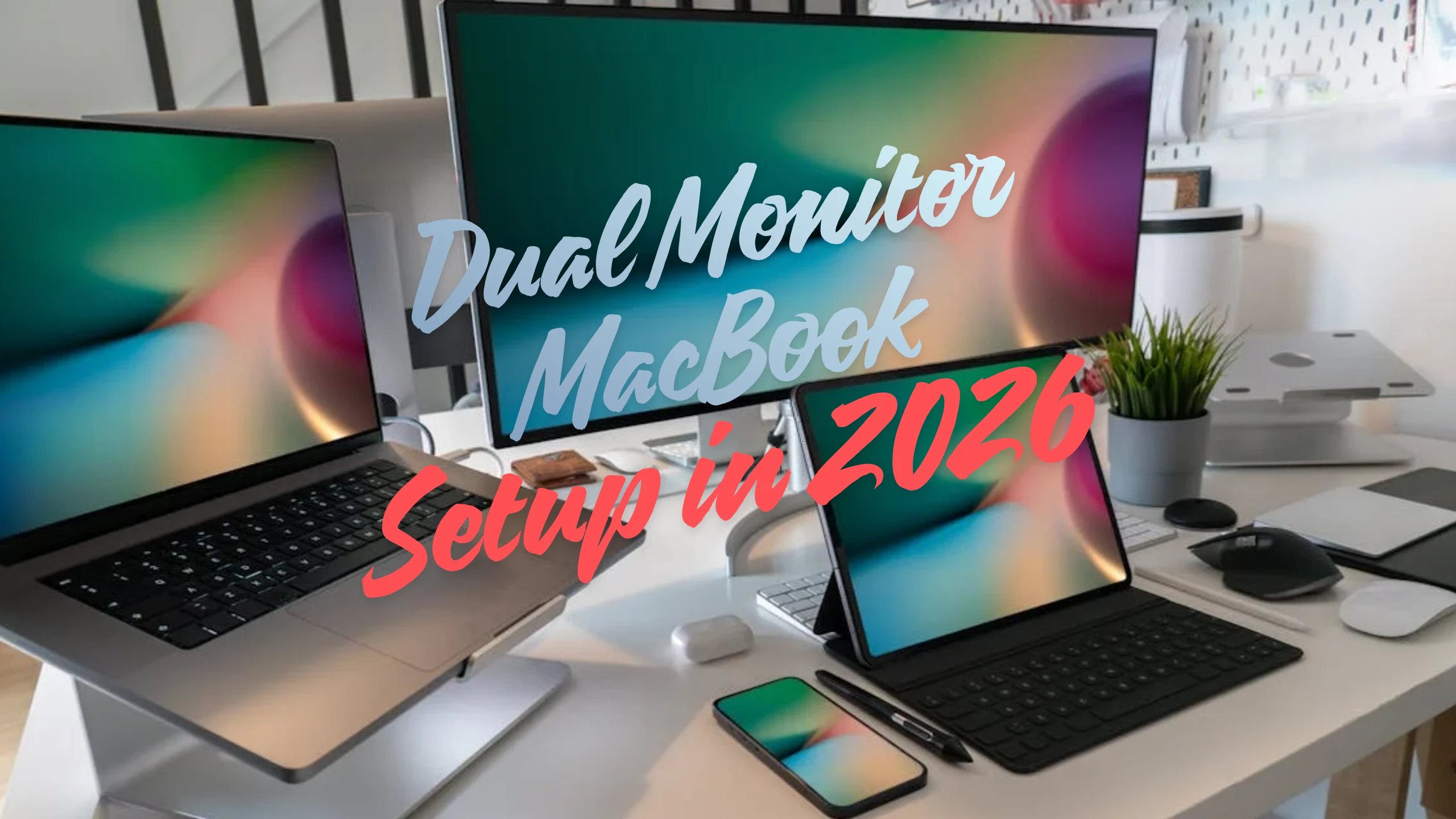
A while back I bought a 2K monitor specifically for coding and editing work. Back then I was really careful about getting one with proper USB-C support, which meant I had to skip cheaper options that came with 165Hz refresh rates. But since I’m not gaming, it’s not really a big deal.So I plugged in the second monitor. The screen extended, I was happy. But a few hours later I realized the same window chaos had just spread across two screens. Congrats, we made the problem bigger. How to Manage Windows on a Dual Monitor MacBook?
Jokes aside, a second monitor is genuinely a game changer, but only if you manage your windows properly. And honestly, going from a 13″ screen to a 24 or 27″ one made my head spin a little at first.
Step 1: Get the display settings right
Go to System Settings -> Displays -> Arrangement on macOS. You’ll see two options: Mirror and Extend. Mirror shows the same thing on both screens, which is not what we want. Choose Extend, then drag the displays to match how you’ve physically positioned your MacBook, whether it’s to the left, right, wherever.
Also take a look at resolution. Pick the highest refresh rate your external monitor supports. Your eyes will thank you.
Setup done. Now let’s get to the real issue.
More screens, more mess
Two screens = twice as many open windows. And macOS’s built-in window management was not built for this. Split View only puts two apps side by side, and Stage Manager is more confusing than it is helpful.
You end up doing this: drag, resize, drag again. It’s like playing the same game every morning. Especially if you’re like me and actively use the same apps every day, always wanting them in the same positions. That alone becomes its own headache, and the more screens and apps you have, the bigger that headache gets.
Stop dragging windows around
Tiling window managers automatically split your screen and place windows into zones you define. You set it up once and never manually drag again.
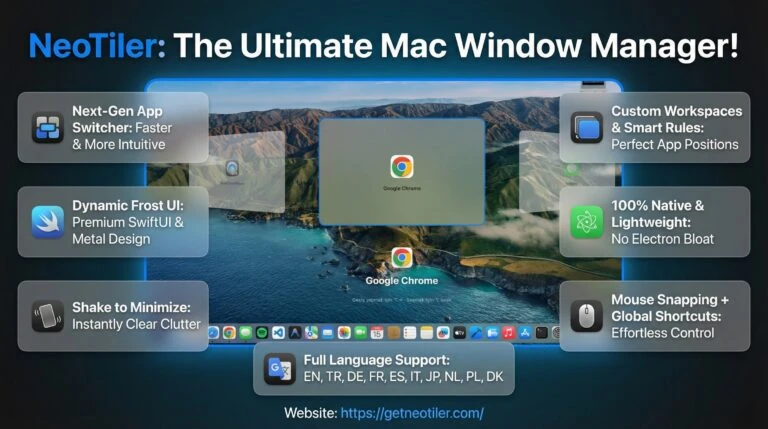
There are a few options on macOS: Magnet, Rectangle, Moom. They all work, but I want to talk about NeoTiler, which I actually built as a solution to my own problem.
With our multi-display support, your main screen keeps working exactly like you’re used to. In my opinion the most comfortable way to use a second monitor without getting lost in it is through the Workspace feature.
So what is a Workspace? It’s a layout saving feature. You set everything up once. Want to browse Safari, listen to Spotify and take some notes on the side? Set up the layout, arrange everything, save all your sizes and positions, then assign a shortcut. Even after a restart, one shortcut brings the whole thing back exactly where you left it.
Or maybe you want to code. Let me tell you about my own setup. I have VSCode on the left, terminal on the top right, and if I’m doing iOS work, the iOS simulator is there too. These are the apps I use every single day. Having to reopen and reposition them after every restart is no longer something I deal with.
The second monitor you bought deserves better
Buying a second monitor is easy. Using it efficiently takes a little thought. With the right layout and a good tiling manager, your setup genuinely speeds up.
I built NeoTiler to solve problems I was dealing with every day, and I’m pretty sure I’m not the only one who’s had these frustrations. There are a lot more features too, including full second monitor support.
If you want to try NeoTiler, you can use it free for 14 days and share your feedback. I’m actively building this and your input will definitely be taken into account.

 Veysel Okatan